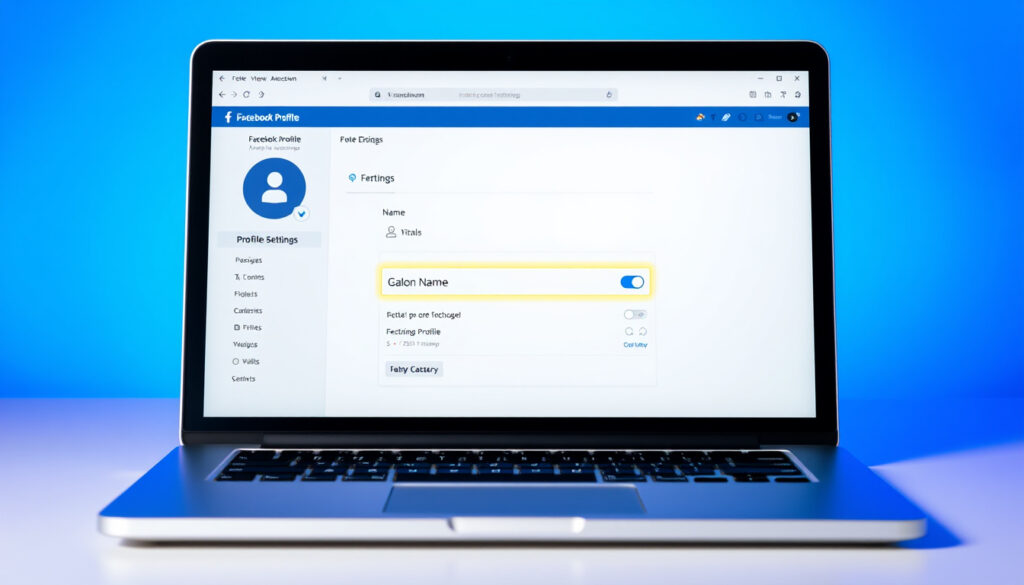
How to Change Name on Facebook – Profiles and Pages Guide
Changing your name on Facebook requires navigating through the platform’s Account Center on mobile or the page settings as an administrator. Whether you’re updating a personal profile or a Facebook Page, the process involves specific steps that differ between account types and includes built-in restrictions to prevent frequent changes [1].
Facebook maintains a 60-day waiting period between name changes for both personal profiles and Pages, making it essential to verify your new name before saving. The mobile app provides the primary pathway for profile updates, while Page administrators must submit their changes for Facebook review.
This guide covers the complete process for changing names on personal profiles, Pages, and various Facebook app variants, with device-specific instructions for iPhone, Android, and Samsung devices.
How to Change Your Name on Facebook Profile
- Profile name changes apply immediately after refreshing the app
- Page name changes require Facebook review and admin approval
- You can add nicknames and former names through the Manage Other Names option
- Both personal and business operations rely on mobile as the primary access method
- Changes must comply with Facebook’s real-name policy
- Password verification is required before saving any modifications
| Action | Navigation Path | Device Support |
|---|---|---|
| Change Profile Name | Settings > Account Center > Profiles > Name | iPhone, Android, Samsung |
| Add Nickname | Settings > Account Center > Profiles > Manage Other Names | All mobile devices |
| Change Page Name | Settings & Privacy > Settings > Page Setup > Name | Desktop and Mobile |
| Edit Facebook Lite | Settings > Account Center > Profiles > Name | Lite app only |
| Professional Mode Name | Profile Settings > Name | Professional Mode users |
Step-by-Step Instructions for Mobile
The process for changing your name on Facebook via mobile follows a consistent pattern across devices. Open the Facebook app and locate your profile icon, which appears at the bottom right on iPhone or the top right on Android devices.
From your profile screen, tap the menu icon (three horizontal lines) typically found at the top left. Navigate to Settings & Privacy, then select Settings. Scroll down and tap on Accounts Center, which may appear as “Profiles & Personal Details” in some interface versions.
Once in the Accounts Center, choose your Facebook profile and locate the Name option. Here you can edit your first name, middle name, or last name directly. If you want to add a nickname, former name, or maiden name, tap Manage Other Names to access additional options.
After entering your desired name, tap Review Change to see how it will appear on your profile. You can select different display options before finalizing. Tap Save Changes, and you may be prompted to enter your password to confirm the action.
Facebook only permits name changes once every 60 days. Review your spelling carefully before tapping Save Changes, as the change takes effect immediately across your entire profile after refreshing the app.
iPhone and Android Variations
The navigation path remains virtually identical between iPhone and Android devices, with the only notable difference being the placement of your profile icon. iPhone users find this at the bottom right of the screen, while Android users typically see it at the top right.
Samsung device owners follow the same Android workflow, as Samsung phones run on the Android operating system. The Account Center interface appears consistent across manufacturers, though minor variations in button labeling may occur depending on your specific device model and Facebook app version.
How to Change Name on Facebook Page
Facebook Page administrators must request name changes through a different pathway than personal profiles. Log into Facebook as an admin and navigate to your Page. The process begins by accessing Settings & Privacy from your Page’s menu options.
Page Name Requirements and Restrictions
Facebook enforces strict guidelines for Page names to maintain platform integrity and prevent misleading information. Your Page name must be specific and accurately represent your business, organization, or purpose.
Names cannot include variations of “Facebook,” slogans, randomly capitalized letters, or any discriminatory or abusive language. Facebook also prohibits names that could mislead visitors about your identity or create confusion with verified entities.
Proper capitalization is expected, and the name should use specific, clear wording rather than generic terms. For example, a coffee shop should not be called merely “Coffee” but should include a distinguishing name.
Submitting a Page Name Change Request
After selecting Settings from your Page menu, click on Page Setup and then choose Name. Enter your proposed new Page name in the provided field, ensuring it meets all of Facebook’s naming requirements.
Tap Review Change to preview how your Page will appear, then select Request Change. You will need to enter your account password to confirm the submission. Unlike personal profile changes, Page name modifications are not immediate.
Facebook reviews Page name requests, and approval timelines can vary. The platform requires a 60-day gap between approved name changes, though there is no absolute limit on total requests if spaced properly. However, recent attempts that were denied or failed may temporarily block the name change option.
After submitting your Page name change request, Facebook will evaluate whether your proposed name meets community standards and naming guidelines. If approved, the new name takes effect immediately. Repeated rejections may require contacting Facebook support for further assistance.
How to Change Name on Facebook Lite and Other Variants
Facebook Lite users can change their names using navigation nearly identical to the standard app. The process flows through Settings & Privacy into Account Center, where the Profiles section leads to the Name option. This consistency across app variants reflects Facebook’s unified backend systems.
Professional Mode Users
Professional Mode, designed for creators who want to separate their personal and professional presence, allows name changes through standard profile settings. No unique steps distinguish this process from regular profile name modifications, and the same 60-day restriction applies.
Creators using Professional Mode should verify that their desired professional name complies with Facebook’s authenticity standards before making changes. For related account management guidance, you may find our Microsoft Hotmail Sign In – Outlook.com Access Guide helpful when navigating various platform settings.
Video Content Creators
Users who primarily engage with Facebook through video content follow the same name change procedures as other profile types. Whether you upload videos to your personal timeline or manage a video-focused Page, the underlying Account Center and Settings pathways remain unchanged.
What Is Confirmed and What Remains Unclear
Several aspects of Facebook’s name change system are well-established through user experience and documented tutorials. The 60-day waiting period between changes applies consistently across personal profiles and Pages. Mobile navigation through Account Center represents the primary method for profile updates on all supported devices. To change your Facebook profile or Page name, navigate to Account Center or Page settings, following the instructions at найкращий конвертер відео в аудіо.
The requirement for Page administrators to submit name changes for review is clearly documented, as are Facebook’s naming restrictions against using platform terms, slogans, or discriminatory language. Third-party sources consistently confirm that Facebook Lite and Professional Mode follow the same fundamental processes as standard accounts [2].
However, certain details lack official confirmation from Facebook’s own documentation. Exact approval timelines for Page name changes are not publicly specified, with sources indicating only that review times vary. The specific criteria Facebook uses to evaluate Page name requests remain internal to the platform.
While tutorials and user reports suggest the process remained consistent through 2025, Facebook has not issued official statements confirming that all steps described in community resources remain current. Users should be aware that interface elements and navigation paths may evolve with platform updates.
Understanding Facebook’s Name Policy
Facebook’s real-name policy requires users to identify themselves using their authentic legal names or the name by which they are commonly known. This policy applies across all platform variants, including Lite and Professional Mode, with the same enforcement standards in place.
Nicknames, maiden names, and former names can be added as secondary identifiers through the Manage Other Names feature, but these do not replace the primary profile name. Facebook’s systems are designed to support users who have legitimate reasons for using names different from their legal documentation. For additional platform navigation assistance, explore our BT Mail Login UK – Official Guide to Access and Fixes.
Violations of the name policy can result in account limitations or permanent suspension. Facebook encourages users to provide identification documents if their common name differs from their legal documentation, though the submission process occurs through separate verification channels [3].
You can change your name or add an additional name to your account to help friends find you. Your primary name must reflect your real name or the name you are commonly known by in your community.
Page names must be specific, accurate, and clearly represent your business or organization. Generic terms, misleading capitalization, and any variation of “Facebook” are not permitted.
Summary
Changing your name on Facebook involves different processes depending on whether you’re updating a personal profile or a Page. Personal profile changes flow through the mobile app’s Account Center and take effect immediately, while Page name changes require submission for review and may take additional time to process.
The 60-day restriction between name changes applies universally, and Facebook enforces strict naming guidelines to maintain platform authenticity. Users on standard apps, Facebook Lite, and Professional Mode all access the same fundamental pathways for name modifications.
For related account management tasks, you may want to review our guide to Microsoft Hotmail Sign In – Outlook.com Access Guide or explore our resource on BT Mail Login UK – Official Guide to Access and Fixes for additional platform navigation assistance.
Frequently Asked Questions
How do I change my name on Facebook if the option is greyed out?
You may have changed your name within the past 60 days. Facebook requires a 60-day waiting period between name changes. Check your profile’s name history in Settings to confirm when your last change occurred.
Can I change my Facebook name back to something I used before?
Yes, you can revert to a previously used name by selecting it from your account’s name history. This also counts as a name change and subjects you to the same 60-day waiting period before your next modification.
What happens to my Page if I change my personal profile name?
Changing your personal profile name does not automatically update any associated Pages. Page administrators must separately submit a name change request through Page settings if the Page name needs updating.
Why did Facebook reject my Page name change request?
Facebook may reject requests that violate naming guidelines, use generic terms instead of specific names, include prohibited words, or could potentially confuse visitors about your Page’s identity or affiliation.
How long does Facebook take to review a Page name change?
Facebook does not publicly specify exact review timelines for Page name changes. User reports indicate the process typically takes several days, though individual experiences may vary based on request volume and complexity.
Can I add multiple nicknames to my Facebook profile?
Yes, the Manage Other Names feature allows you to add multiple nicknames, former names, and maiden names to your profile. These appear as additional identifiers alongside your primary name.
What should I do if Facebook denied my name change?
If your name change request was denied, review Facebook’s community standards and naming policies to identify potential issues. You can submit a new request after addressing any violations, or contact Facebook support for specific guidance on your situation.
Can I change my name on Facebook more than once every 60 days?
No, Facebook enforces a strict 60-day waiting period between name changes. Once you save a new name, you cannot modify it again until 60 days have passed, regardless of account type or the reason for the change.
More related posts
 Call the Midwife Season 13: Release, Cast & Where to Watch
 Hardware Store Near Me: Dublin Guide (Open Now, Best, Wholesale)
 How to Roast Parsnips – Crispy Tips, Temps and Times
 Slash Guns N’ Roses: Health, Feud, Family & Style
 Adam Sandler Happy Gilmore 2 – Cast Cameos and Key Facts
 Things to Do in Isle of Wight – Attractions & Hidden Gems
 Amazon Coventry TB Outbreak – Union Demands Closure
 King Kong: From 1933 Monster to Modern Hero
